Gaming Setup Optimization: Reduce Input Lag for Faster Reaction Time
November 27, 2025 | By Marcus Adler
Introduction
Ever wonder why you struggle to hit sub-150ms reaction times in games like Valorant or CS2? Many gamers overlook a critical factor: hardware input lag. Even fast reflexes get sabotaged by slow displays, mouse delays, or unoptimized system settings. Before you start tweaking, it's a good idea to establish your baseline reaction time to see where you stand.
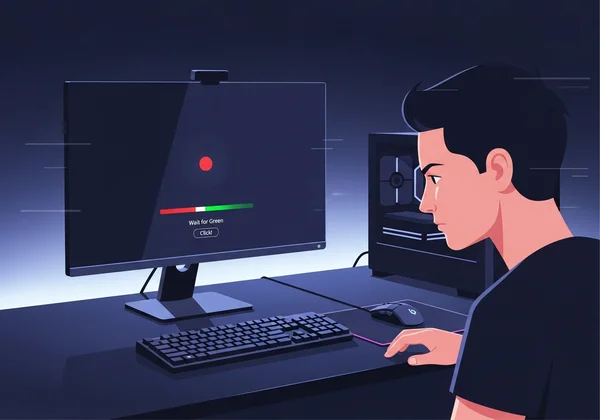
Professional esports players obsess over every millisecond of their equipment’s latency. Why? Because in competitive gaming, a 20ms input lag could mean losing a clutch 1v1 fight or missing the perfect headshot.
This guide walks you through practical hardware optimizations—monitor setups, mouse adjustments, and hidden system tweaks—that pro gamers use to unlock their true reaction speed. The key is to measure your progress along the way. That's where our scientifically calibrated reaction time test comes in. Run it before and after making these changes to quantify your gains!
Monitor Optimization: Slash Display Lag for Accurate Reaction Tests
Your monitor is the biggest bottleneck for input lag. A slow display adds ghosting, motion blur, and delays your ability to see critical in-game events. Let’s fix that.
Response Time vs Refresh Rate: Which Matters More for Speed Tests?
- Refresh Rate (Hz): How often your screen updates per second. A 144Hz monitor refreshes 144 times per second—twice as fast as standard 60Hz displays. Higher Hz equals smoother motion and less visible delay for tracking fast-moving targets.
- Response Time (ms): How quickly a pixel changes color. Aim for 1ms GTG (Gray-to-Gray) ratings to minimize motion blur.
Verdict: Both matter, but prioritize refresh rate first for gaming. A 144Hz/1ms monitor gives you the visual clarity needed for split-second reactions. Test yours: if you see trailing images when moving your mouse rapidly, upgrade your display.
GSync/FreeSync: Friend or Foe of Reaction Time Accuracy?
Variable Refresh Rate (VRR) tech like GSync/FreeSync reduces screen tearing but introduces minor input lag (2-5ms).
- Competitive play: Turn off VRR for minimal latency.
- Casual gaming: Keep VRR enabled for smoother visuals.
Pro Tip: Test your reaction speed here with VRR on/off to see the difference yourself!
Mouse & Peripherals: Achieving Zero-Latency Clicks
Your mouse is your fastest link to the game. A sluggish sensor or poor settings can add 10-30ms of lag. That gap alone could ruin your reaction speed edge.
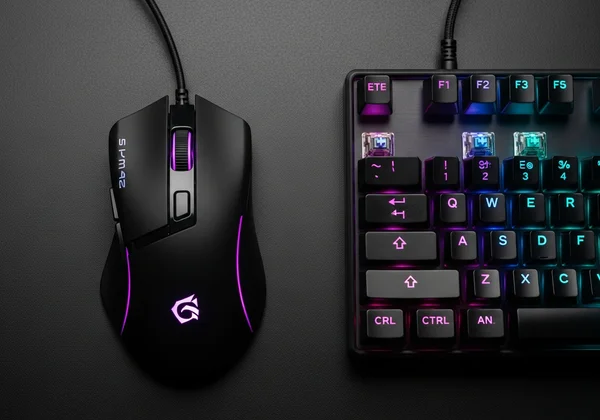
Polling Rates Decoded: Why 1000Hz Isn’t Always Better
- Polling Rate: How often your mouse reports its position to your PC (measured in Hz). High-end mice offer 1000Hz (1ms intervals). But unless your CPU/RAM can handle it, extreme polling rates cause instability.
- Use 500Hz for balance—reliable tracking with minimal overhead. Upgrade to 1000Hz only if you’re running a high-end rig.
Proven Tool: Test your new mouse settings to ensure your latency drops, not spikes.
Keyboard Debounce: The Hidden Reaction Time Killer
Mechanical keyboards register keypresses faster than membrane ones—but debounce algorithms can ruin this. Debounce delay prevents double-presses—but here’s the catch: it adds up to 20ms of input lag.
- Gaming keyboards: Enable “rapid trigger” modes (e.g., Razer Hyperspeed) or set debounce times to ≤10ms.
- Avoid cheap wireless keyboards: Bluetooth connections add 40-150ms latency!
System-Wide Tweaks to Maximize Reaction Test Validity
Windows Optimization Guide for Competitive Gamers
Reduce background OS delays with these tweaks:
- Set Power Plan to “Ultimate Performance” (via Command Prompt).
- Disable Game Bar: Go to Settings > Gaming > Xbox Game Bar → Off.
- Use Fullscreen Mode: Bypasses Windows’ desktop compositor, slashing input lag by 20-30ms.
Network Latency’s Surprising Impact on Online Speed Tests
Think network lag affects only online games? Wrong. Browser-based tools like our reaction speed test rely on stable internet. Slow connections delay loading, skewing your results.
- Close bandwidth hogs: Dropbox, Zoom, Steam downloads.
- Use Ethernet over Wi-Fi: Wireless adds unpredictable 10-100ms spikes.
Putting It All Together
You've tuned your monitor, mouse, and system settings to create a lean gaming machine. The only thing left is to see the results. How much faster is your reaction time now?
Validate your gains with an accurate reaction time test. Pro gamers track their progress weekly—try it yourself and see consistent gains!
Gaming Hardware & Reaction Tests: Expert Answers
Is 144Hz enough for accurate reaction tests?
Yes. Beyond 240Hz, gains are marginal (3-5ms max). Focus instead on minimizing response time and input lag. Track improvements reliably via our offline-compatible test tool.
Can wireless mice compete with wired for low latency?
Modern gaming wireless mice (e.g., Logitech Lightspeed, Razer Hyperspeed) have near-identical latency to wired ones—under 2ms. Avoid non-gaming wireless mice.
Does VSync increase reaction times in speed tests?
Dramatically. VSync can add 50-100ms input lag. Never use it for reaction-critical games or tests. Disable it in graphics settings.